
Security & Trust
Why Tradelics is safe to download and install
Every copy of Tradelics is verified via Microsoft Artifact Signing — here is what that means for you.
When you download software from the internet, you are taking a degree of trust on faith. We want to remove that uncertainty completely. Tradelics carries a digital certificate issued through Microsoft’s signing infrastructure — the same technology used by established software publishers worldwide to prove the authenticity of their releases.
This page explains what that certificate is, what it guarantees, and how you can verify it yourself in seconds — directly in Windows, without installing anything extra.
What the certificate guarantees
The file genuinely comes from Tradelics
The certificate is issued directly to “Tradelics” by Microsoft. Windows displays this name during installation so you always know who published the software you are running.
The file has not been tampered with
The moment we publish a release, its contents are locked by the certificate. If the file were altered by even one byte after publication, the signature would immediately become invalid.
Renewed daily for tighter security
Microsoft issues a fresh certificate for every release — automatically, behind the scenes. This means that even in the unlikely event a certificate were ever compromised, only that single day would be affected. Your installed copy of Tradelics stays valid and trusted permanently, regardless of when you downloaded it.
Issued by Microsoft’s own certificate authority
The certificate chain runs directly from your copy of Tradelics back to Microsoft — not through a third-party intermediary. This is the strongest form of publisher verification available on Windows.
The certificate, directly from Windows
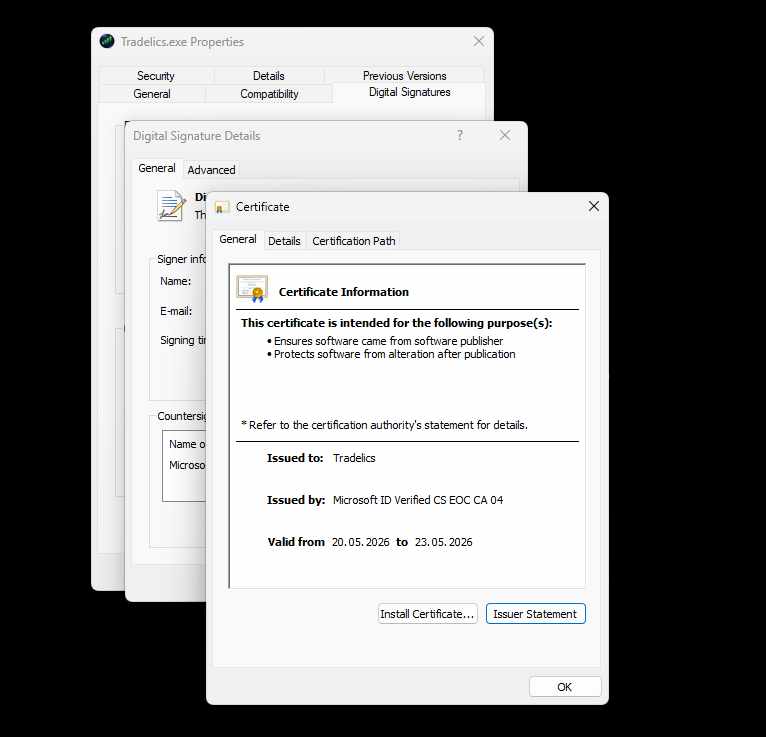
Protects software from alteration after publication
SIGNATUE VALIDITY
What you see on your desktop

Tradelics.exe — a file you can trust
The application on your desktop is the exact file that was signed and published by Tradelics. Its signature travels with the file permanently — Windows can verify its authenticity at any point, long after installation.
Verify it yourself in 3 steps
You do not have to take our word for it. Windows lets you inspect the certificate directly — no extra tools needed.
1
Find the installer or the installed application
Locate Tradelics.exe — either the installer you downloaded, or the application shortcut on your desktop.
2
Open Properties → Digital Signatures
Right-click the file and choose Properties, then click the Digital Signatures tab. You will see “Tradelics” listed as the signer.
3
Confirm the certificate details
Click Details, then View Certificate. Confirm it shows Issued to: Tradelics and Issued by: Microsoft — exactly as shown in the screenshot above.
Ready to get started?
Download Tradelics and verify the signature yourself — takes less than a minute.